For developers
The Twixit Xcode agent
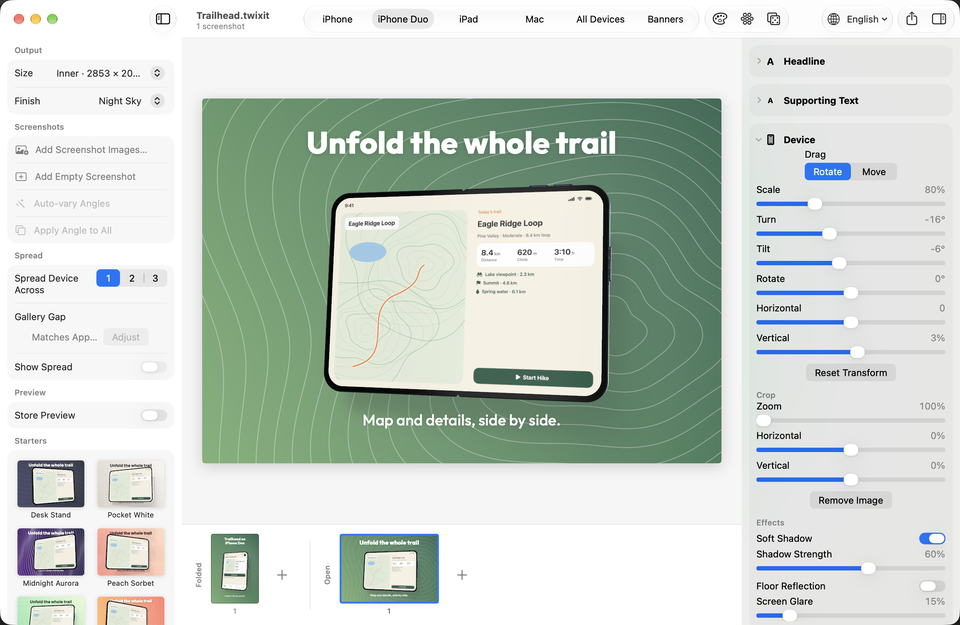
Ask the AI agent in Xcode for App Store screenshots. It runs your app in the Simulator, writes the copy in every language your app supports, and saves a Twixit project you can open and adjust.
What the plug-in is
A small, free plug-in from github.com/webzler/Twixit-Xcode-Plugin. It tells the agent how to start Twixit's MCP server and when to use Twixit. The skills and guides come from the Twixit app itself, so they update with the app.
The plug-in needs Twixit installed from the Mac App Store, with Allow automation turned on in Twixit › Settings › Automation.
Install, three ways
-
1. From Twixit
Choose Twixit › Settings › Automation › Set Up Xcode Agent… Twixit turns on automation and opens Xcode's plug-in installer; click Install.
-
2. The one-click link
With Xcode 27 or later running, open:
xcode://agent-plugin-clone?repo=https%3A%2F%2Fgithub.com%2Fwebzler%2FTwixit-Xcode-Plugin -
3. Manually, in Xcode
Settings › Intelligence › Plug-ins › Add Plug-in… › Add from URL, and enter
https://github.com/webzler/Twixit-Xcode-Plugin.
What the agent does
Ask: "Make App Store screenshots for this app." Then, step by step:
- It asks once for access to your project's folder. Twixit shows the request; choose Allow…, then Allow Access. You can remove the folder later in Settings.
- It reads your project: the app's name, the languages it supports, its colours and fonts.
- It runs your app in the Simulator and captures the key screens.
- It writes a headline and supporting text for each screen, in every language your app supports.
- It designs the set to match your app's colours and fonts, and saves the Twixit project as
fastlane/Screenshots.twixit. - It previews the set with you and makes the changes you ask for.
- It exports screenshots to
fastlane/screenshots/<language>/and banners tofastlane/banners/. - You fine-tune: the project shows up in Twixit's Projects window. Every change the agent made can be undone.
MyApp/
└── fastlane/
    ├── Screenshots.twixit     # the Twixit project
    ├── screenshots/
    │   ├── en-US/             # 01.png, 02.png …
    │   └── de-DE/
    └── banners/
Other agents and Terminal
Any MCP client can connect, using the command shown in Twixit › Settings › Automation.
The twixit command line tool is built into the app. A few examples:
# Is automation on, and which version is running?
$ twixit status

# Fonts you can use in headlines
$ twixit list fonts

# Export every language of a project
$ twixit render MyApp.twixit --out ./shots --lang all

# Preview the set
$ twixit preview
Safety
- Automation is off by default.
- Loopback only: the server listens on 127.0.0.1, with a per-install token, so websites and other computers can't reach it.
- Agents can use only folders you allow, revocable in Settings.
- Every agent edit is undoable.
- Free limits apply to agents too.
An agent you connect receives what it asks Twixit for, and may send it to the AI service it uses. Details are in the privacy policy.
 Download fromMac App Store