What every button does

A guide to the buttons, switches and badges in Twixit’s windows, from the toolbar at the top to the screenshot strip at the bottom. Hover over a button in the app to see the same help.

Take the tour

Hover over the window, or tap on a phone, to see what each part does.
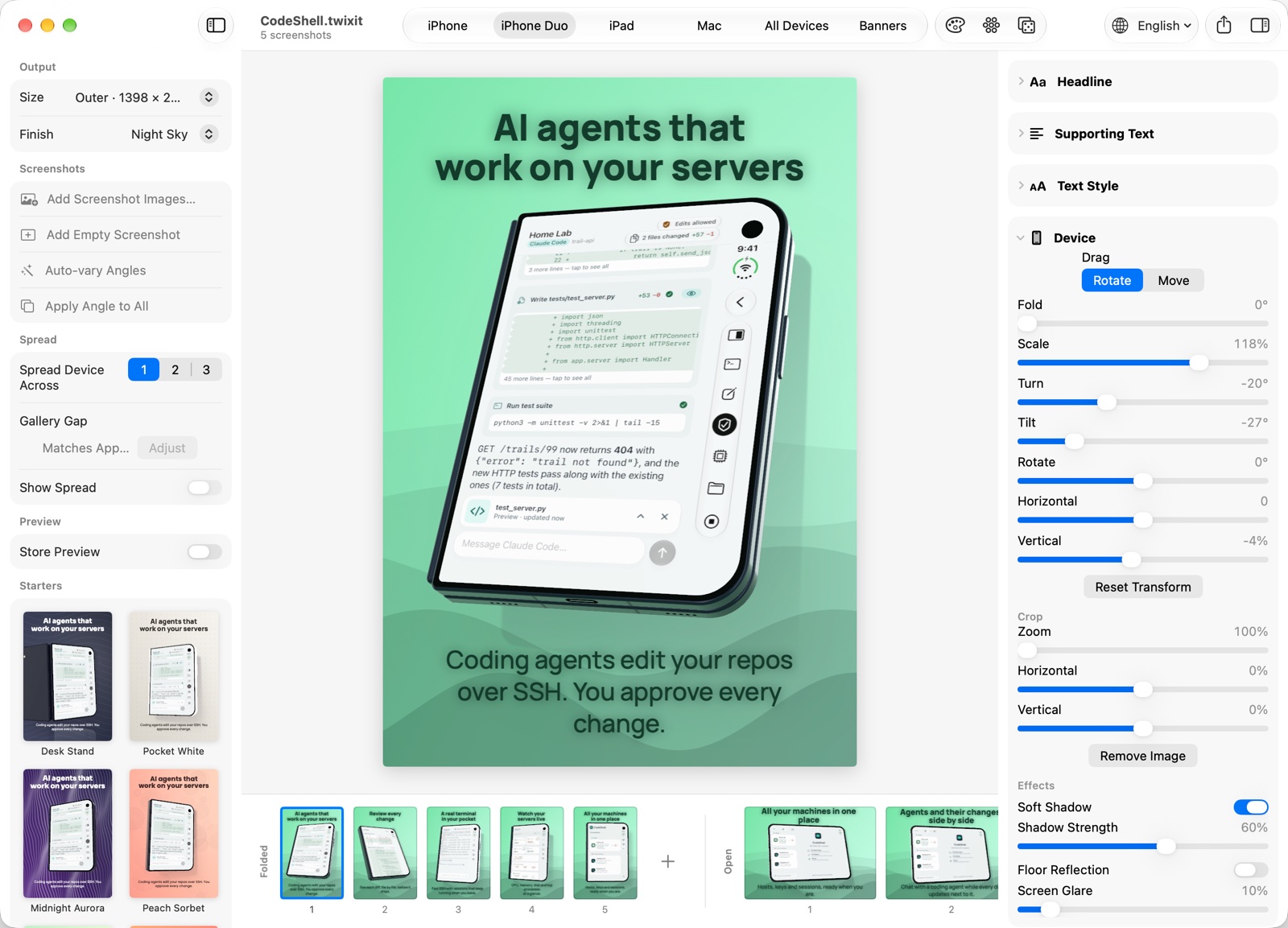
The Twixit window editing iPhone Duo screenshots
SidebarShows or hides the sidebar on the left.
DeviceSwitches between screenshot sets. Each device keeps its own screenshots; Banners makes the App Store header and search results images.
Random Background⌥⌘BTries a new background colour or gradient. Undo goes back.
Random Pattern⌥⌘PTries a new pattern over the background.
Surprise Me⌥⌘RA new background, pattern, fonts and text layout at once. Your copy and screenshots stay.
Language⌃⌘[⌃⌘]The language you’re editing. Add languages, or translate missing copy on your Mac.
Export⇧⌘ESaves the screenshots as PNG files for App Store Connect, in every size and language you choose.
InspectorShows or hides the inspector on the right.
Size and FinishThe App Store display size this set is made for, and the device’s colour. iPhone Duo has sizes for its outer and inner displays.
Add Screenshot Images⇧⌘IPick captures of your app; each becomes a screenshot. Or drop images on the window.
Add Empty Screenshot⌥⌘NA screenshot without a capture, ready for an image later.
Auto-vary AnglesGives each screenshot a different device angle, so the gallery doesn’t repeat itself.
Apply Angle to AllGives every screenshot this one’s device angle.
Spread Device AcrossRuns one large device across 2 or 3 neighbouring screenshots, so it carries on as people swipe.
Gallery GapSpreads leave the same gap as the App Store gallery, so the device lines up. Adjust changes it.
Show Spread⌃⌘SShows every screenshot of a spread side by side.
Store Preview⌃⌘PSee the set as the App Store gallery shows it.
StartersReady-made looks. Click one to apply it; your copy and screenshots stay.
CanvasClick the text, device or background to edit it. Drag the device to turn or move it, or drag the text.
Folded screenshotsiPhone Duo’s outer-display set. Click to select, drag to reorder, Control-click to duplicate, delete or spread.
Add ScreenshotAdds a screenshot to the end of the set.
Open screenshotsiPhone Duo unfolded, on its inner display. Click one to edit the open set.
HeadlineThe large text at the top. Click to show its text.
Supporting TextThe smaller line under the headline.
Text StyleFonts, including any on your Mac, weight, colour, shadow and size, and wrapping text around the device.
DeviceThe device’s angle, size, position and capture.
Drag⌥⌘1⌥⌘2Whether dragging the device on the canvas turns it or moves it.
FoldiPhone Duo on its outer display: closed, or opened into a V standing on a desk.
Scale, Turn, Tilt, Rotate, PositionFine-tune the device. The values match what dragging does.
Reset TransformPuts the device back to its default angle, size and place.
CropZooms into the capture and moves it within the screen.
Remove ImageTakes the capture off this screenshot.
EffectsSoft shadow under the device, floor reflection, and glass glare over the screen.
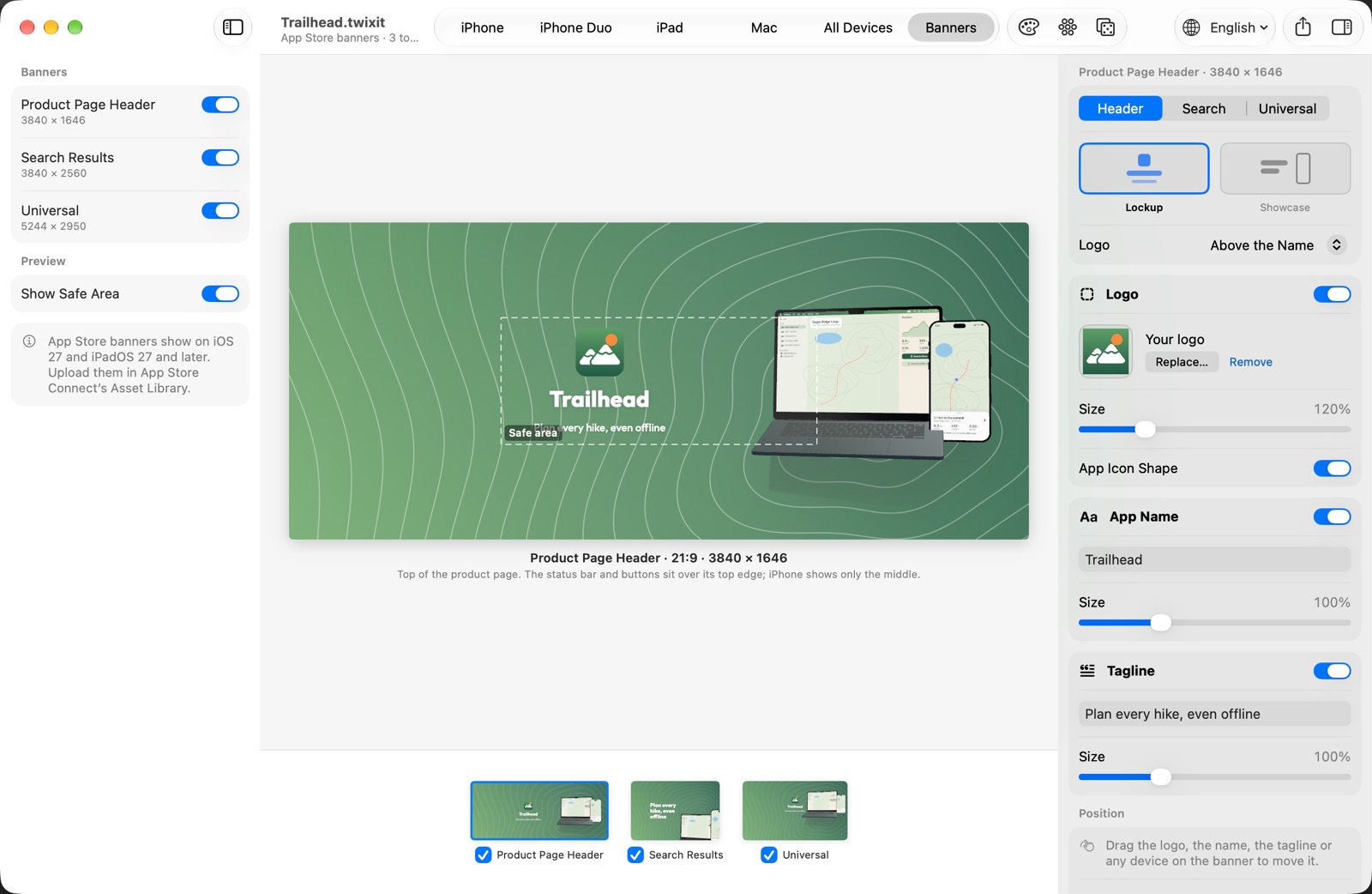
The Twixit window editing App Store banners
BannersOpens the App Store banners. Designing and previewing them is free; exporting needs Twixit Pro.
Export⇧⌘ESaves the banners as PNG files for App Store Connect.
Banners to exportEach switch includes or leaves out one banner: product page header, search results, or universal.
Show Safe AreaOutlines the middle of the banner that every device shows. Keep your logo and name inside it.
BannerDrag the logo, name, tagline or a device to move it, or drag its corner handles to resize it.
Banner thumbnailsClick one to edit it. The checkbox includes it in the export.
Header, Search, UniversalThe banner the inspector edits.
LayoutLockup centres your logo and name; Showcase puts your tagline beside the devices.
Logo positionWhere the logo sits next to the name.
LogoShows or hides your app icon or logo.
Your logoDrop in an image, for example from Icon Composer, or Replace and Remove it.
SizeEach part has its own size slider; the corner handles on the banner do the same.
App Icon ShapeRounds a square image’s corners like an app icon.
App NameShows or hides your app’s name; type it below.
TaglineShows or hides a short line about your app, in each language.

Toolbar

Along the top of the project window.

iPhoneiPhone DuoiPadMacAll DevicesBanners
Device

Switches between screenshot sets. Each device keeps its own set of screenshots but shares the design, languages and banners. All Devices shows Mac, iPad and iPhone together. Banners opens the App Store’s product page header and search results images.

English
Language⌃⌘[⌃⌘]

Chooses the language whose text you’re editing and previewing, and lets you add or remove App Store languages. The shortcuts step to the previous or next language.

Random Background⌥⌘B

Tries a new background colour or gradient. Press again for another; Undo goes back.

Random Pattern⌥⌘P

Tries a new pattern over the background.

Surprise Me⌥⌘R

Picks a new background, pattern, fonts and text layout all at once. Your copy and screenshots stay as they are.

Export⇧⌘E

Saves the screenshots, or the banners when Banners is showing, as PNG files ready to upload to App Store Connect. Choose the sizes, languages and folder, and optionally make a zip file.

Inspector

Shows or hides the inspector on the right, where you edit the selected screenshot’s text, device and background.

Screenshot strip

Along the bottom of the window: one thumbnail per screenshot. Drag to reorder, or Control-click for Duplicate, Delete, Spread and Remove Image.

Add Screenshot

Adds a screenshot to the end of the set. On iPhone Duo there’s one for folded and one for open.

Needs a capture

This screenshot has no image of your app yet. Drop one on it, or paste.

Part of a spread

The device on this screenshot continues onto its neighbours.

Not translated

This screenshot has no text in the language you’re editing yet, so it shows your main language’s text.

Translated draft

The translation hasn’t been checked yet. Read it, then click Confirm in the inspector.

Free screenshot

Exported with Twixit Free. Change its text and export it again any time; a new picture or look needs Twixit Pro.

Free screenshot, changed

Something besides its text has changed, so exporting it now needs Twixit Pro. Undo to export it free again.

Inspector

On the right: settings for the selected screenshot. Click a heading to fold its section away.

Headline
Headline

The large text at the top of the screenshot.

Supporting Text
Supporting Text

The smaller line under the headline.

Text Style
Text Style

Fonts (including any installed on your Mac), weight, colour, shadow and size. Wrap Around Device flows the lines around the device instead of behind it.

Device
Device

The device’s angle, size and position, and its capture.

RotateMove
Drag⌥⌘1⌥⌘2

Whether dragging the device on the canvas turns it or moves it.

GroupMaciPadiPhone
Adjust

In All Devices, whether your changes move the whole group or one device within it.

Background
Background

Colours, gradient, pattern, or a picture of your own. Shared by every screenshot.

Tilt 12°
Reset

Next to a slider: puts that setting back to its default.

Confirm
Confirm

Marks a translated draft as checked.

Banners PRO

Choose Banners in the toolbar. Designing and previewing banners is free; exporting them needs Twixit Pro. Drag the logo, name, tagline or a device on the banner to move it, or drag its corner handles to resize it.

HeaderSearchUniversal
Banner

Which banner the inspector edits: the App Store product page header, the search results image, or the universal one.

Header
Include when exporting

The checkbox under each banner’s thumbnail. Untick a banner to leave it out of the export.

Lockup Showcase
Layout

Lockup centres your logo and name as a mark; Showcase puts your tagline beside the devices.

Copy to Other Banners

Gives the other two banners this one’s logo, text, sizes, devices and layout. Undo puts them back.

Logo
Logo

Shows your app icon or logo. Drop in an image, for example exported from Icon Composer. App Icon Shape rounds a square image’s corners.

App Name
App Name

Shows your app’s name.

Tagline
Tagline

Shows a short line about your app, in each language.

Devices
Devices

Shows devices with your screenshots on the banner. Each device has its own type, finish, side, turn and tilt.

Add Device
Add Device

Adds another iPhone, iPad or Mac to the banner.

ForwardBack
Forward and Back

Brings a device in front of the one before it, or sends it behind the one after it.

Remove Device
Remove Device

Takes the device off the banner.

Languages

In the language menu in the toolbar, and Manage Languages.

English
Language menu

Pick the language to edit (with how many screenshots still need text), add or manage App Store languages, or Translate Missing Copy on your Mac. Each language gets its own copy of the text.

Remove language

Removes a language and its text. Edit › Undo brings it back.

Projects window

Shown when Twixit opens, and with File › Show Projects ⇧⌘1.

New Project
New Project⌘N

Starts a project for one app, with a set for each device.

Open…
Open⌘O

Opens a Twixit project from disk.

From Xcode Agent
From Xcode Agent

Marks a project the Xcode agent made for you. Turn automation on in Settings › Automation.